grandMA3 is a product of MA Lighting ↗ — this is a free, independent tool, not affiliated with or endorsed by MA Lighting.
grandMA3 · OSC Message Generator
Build any OSC command with dropdowns — copy the string into Companion, QLab, TouchOSC, Open Stage Control or any OSC sender.
Sent to address /cmd as a single string — the console runs it exactly as if typed on the command line.
SendOSC) pointed at your grandMA3's OSC input port.
Manual & examples
Never sent an OSC message before? Do the three steps once, then copy any ready-made example straight into your OSC app. Every message below already includes your prefix from the top bar — change the prefix and they all update.
Turn on OSC in the console
On the grandMA3: Menu → In & Out → OSC. Enable a line, set Input to Rx, and note its Port (e.g. 8000) and Prefix (default gma3).
Build a message above
Pick a tab (Command, Fader, Button…), set the dropdowns, and the panel on the right shows the finished message live.
Copy it into an OSC sender
Paste into Companion, TouchOSC, QLab or Open Stage Control, aimed at the console's IP address and the port from Step 1.
The numbers are just examples — executor 201, page 1, cue 3. Swap in your own. Commands sent to /cmd run exactly as if typed on the console's command line, so anything you can type, you can send. An “executor” is one fader/button strip; its page and number are printed on the console's fader labels.
grandMA3 is a product of MA Lighting ↗ — this is a free, independent tool, not affiliated with or endorsed by MA Lighting.grandMA3 · MIDI
Same console, over MIDI — MIDI Show Control, or raw Note / CC / Program Change (for MIDI-remote mappings).
Note/CC/PC are raw channel-voice MIDI (9n/8n note+velocity, Bn CC+value, Cn program). What they trigger depends on the console’s MIDI-remote mapping.
Featured products
-
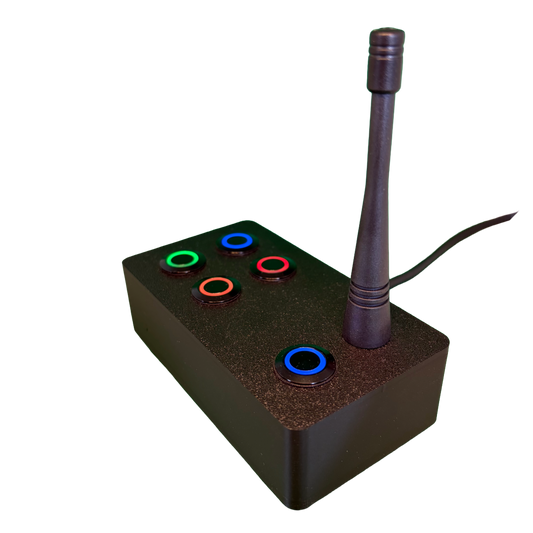
SchwiftyEx – Wireless MIDI & OSC trigger for Exhibits & Performance
Regular price €320,00 EURRegular price -
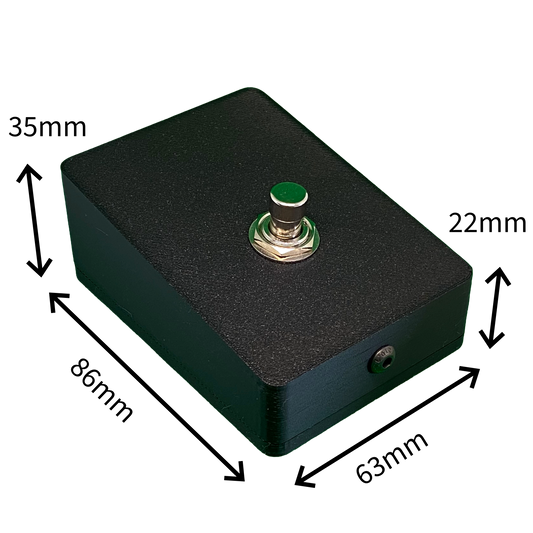
SchwiftyStomp footswitch
Regular price €64,00 EURRegular price -
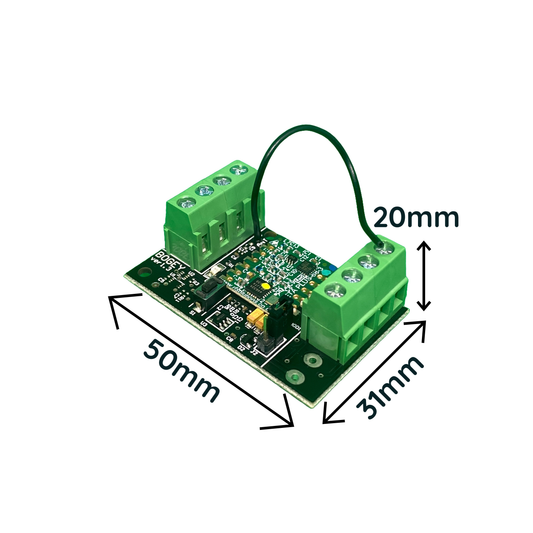
SchwiftyBogey
Regular price €48,00 EURRegular price -
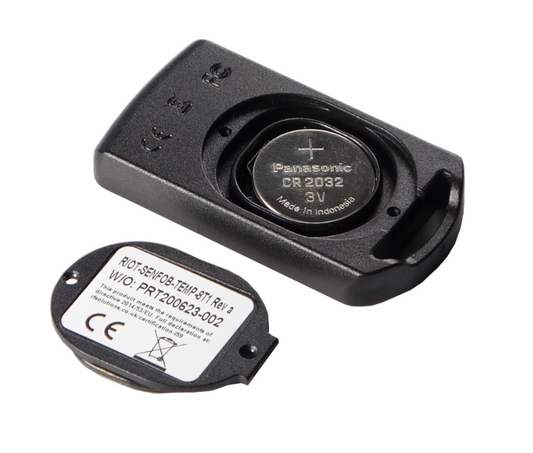
SchwiftyRemote
Regular price €40,00 EURRegular price