QLab is a product of Figure 53 ↗ — this is a free, independent tool, not affiliated with or endorsed by Figure 53.
QLab · OSC Message Generator
Build OSC to control QLab (v4/v5) — copy the string into Companion, a lighting console, TouchOSC or any OSC sender.
Workspace-level messages. With no Workspace ID set, they broadcast to every workspace listening on the port. "Go to cue" uses /go/<number>.
Manual & examples
New to OSC? Do the three steps once, then copy any ready-made example straight into your OSC sender. Every message below already reflects your Workspace ID from the top bar.
Turn on OSC in QLab
In QLab: Workspace Settings → Network → OSC Access. Enable OSC control. QLab listens on port 53000 (UDP); set a passcode there if you want one.
Build a message above
Pick a tab (Transport, Cue…), set the fields, and the panel on the right shows the finished message live.
Copy it into an OSC sender
Paste into Companion, a lighting console, TouchOSC or any OSC app, aimed at the QLab machine's IP on port 53000.
Numbers are examples — cue 5. Swap in your own (or use a cue's number/name). With no Workspace ID set, messages go to every workspace on the port. If a workspace has a passcode, send /workspace/<id>/connect <passcode> first.
QLab is a product of Figure 53 ↗ — this is a free, independent tool, not affiliated with or endorsed by Figure 53.QLab · MIDI
Same console, over MIDI — MIDI Show Control, or raw Note / CC / Program Change (for MIDI-remote mappings).
Note/CC/PC are raw channel-voice MIDI (9n/8n note+velocity, Bn CC+value, Cn program). What they trigger depends on the console’s MIDI-remote mapping.
Featured products
-
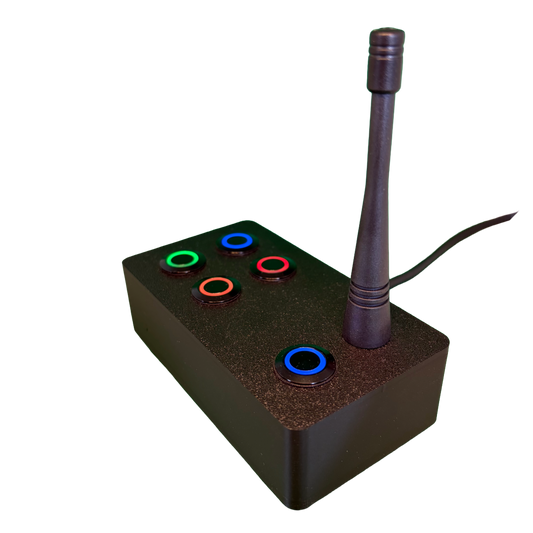
SchwiftyEx – Wireless MIDI & OSC trigger for Exhibits & Performance
Regular price 3.051,00 DKKRegular price -
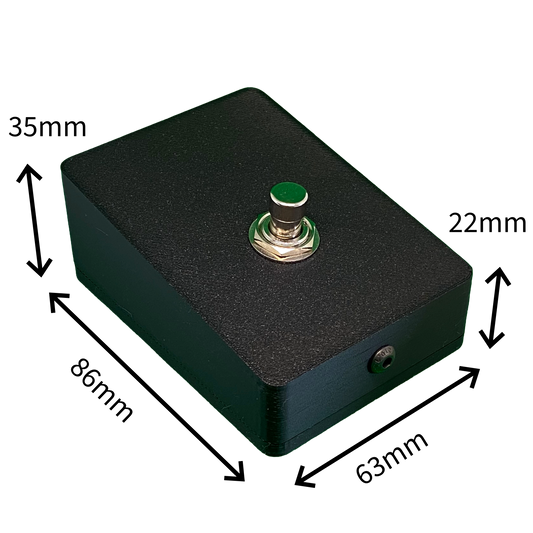
SchwiftyStomp footswitch
Regular price 611,00 DKKRegular price -
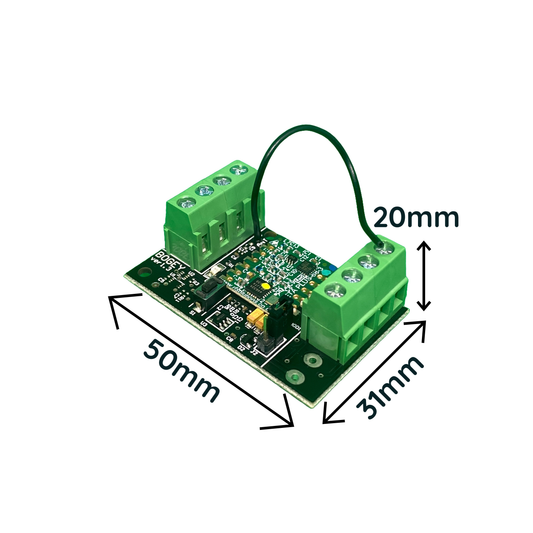
SchwiftyBogey
Regular price 458,00 DKKRegular price -
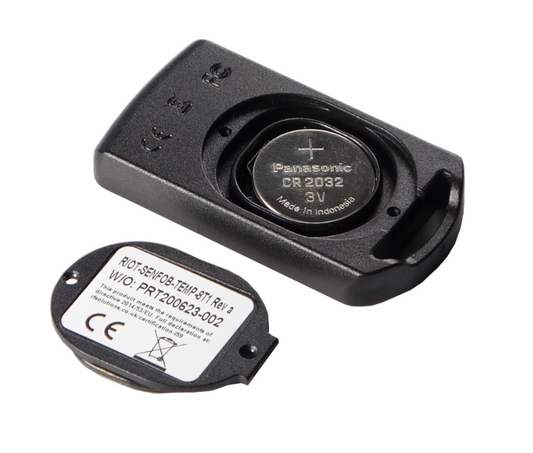
SchwiftyRemote
Regular price 382,00 DKKRegular price